Series: Laravel + LinkedIn Auto-Posting Overview · Part 1: Developer app · Part 2: OAuth token · Part 3: Token renewal · Part 4: post:share command
Before Laravel can post anything to LinkedIn, LinkedIn needs to know about your application. That happens in the LinkedIn Developer Portal, where you create an app, attach the products that grant API permissions, and register the URLs LinkedIn may redirect back to.
Also Read: Livewire 4 Islands in Filament: Where They Actually Help
This part covers every screen you'll touch, the settings that matter, and the mistakes that cost the most time: an unverified page, a missing product, or a redirect URL that doesn't match.
About the screenshots: the images in this article are simplified illustrations of the Developer Portal screens, so they stay readable as LinkedIn's UI changes. Labels and field names match the portal at the time of writing.
What you need before you start
- A personal LinkedIn account. It will be the app's owner.
- A LinkedIn company page where you are an admin. Every developer app must be associated with one, even if you only post to your personal profile.
- A privacy policy URL (for example
https://thewebtier.com/privacy-policy). - A square app logo, at least 100×100 px.
- The HTTPS URL of your Laravel site.
Step 1: Create the app
Go to linkedin.com/developers/apps and click Create app.
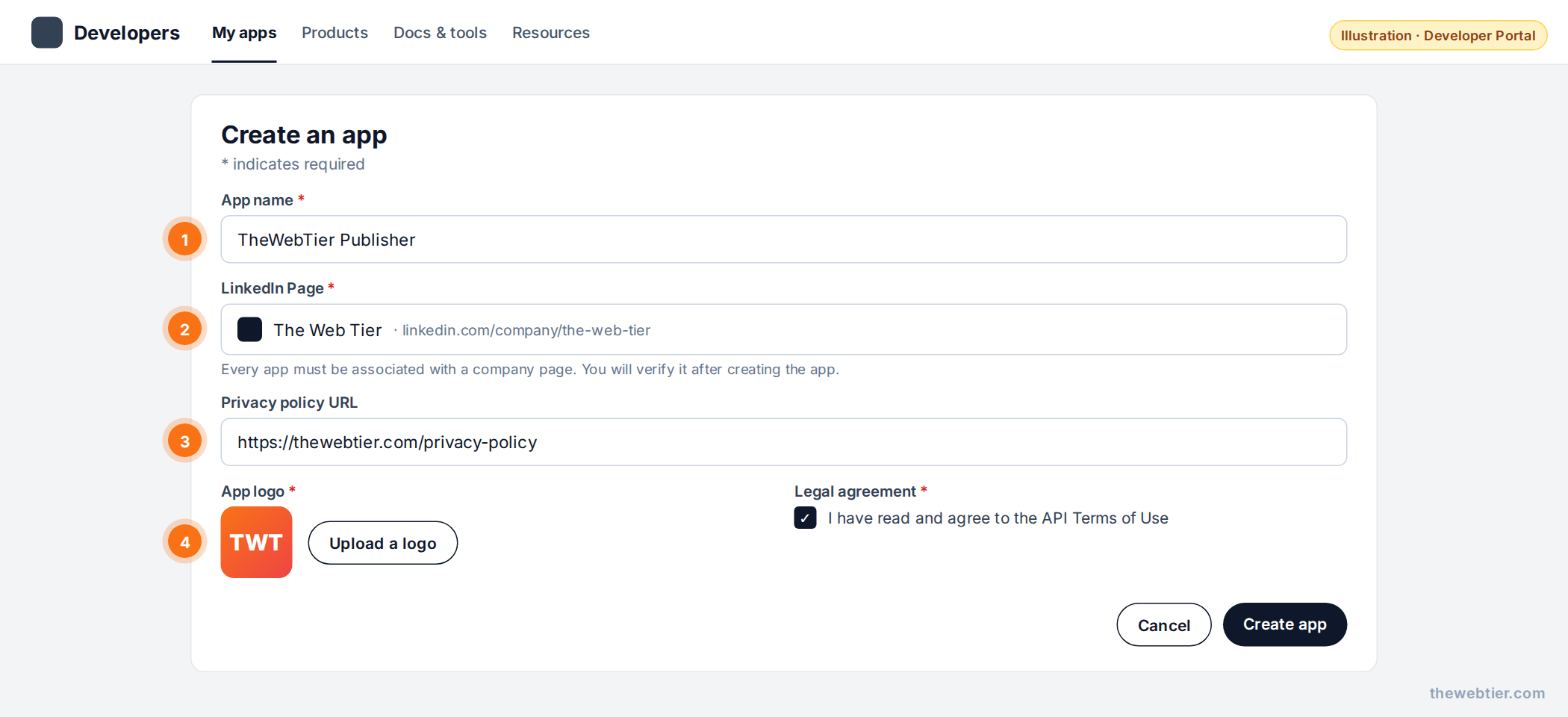 Illustration: the "Create an app" form.
Fill in:
Also Read: Filament on Laravel 13: The Complete Compatibility Checklist
| Field | What to enter | Tip |
|---|---|---|
| App name | TheWebTier Publisher | Readers see it on the consent screen, so make it recognisable |
| LinkedIn Page | Your company page | Search by name or paste the page URL |
| Privacy policy URL | https://yoursite.com/privacy-policy | Must be reachable |
| App logo | Square PNG/JPG | Also shown on the consent screen |
| Legal agreement | Tick to accept | Read the API Terms of Use |
Click Create app. You'll land on the app's Settings tab.
Step 2: Verify the company page
A new app is linked to your page but not yet verified, and some products can't be added until it is.
- On the Settings tab, find the LinkedIn Page card and click Verify.
- Click Generate URL.
- Open that URL while logged in as a page admin (probably you) and approve.
Refresh the Settings tab. The page should now say Verified.
Common gotcha: if you're not a super admin of the page, the verification link does nothing useful. Send it to someone who is.
Step 3: Add the products (this is where scopes come from)
LinkedIn doesn't let you pick scopes directly. You add products, and each product unlocks a set of OAuth scopes. Open the Products tab.
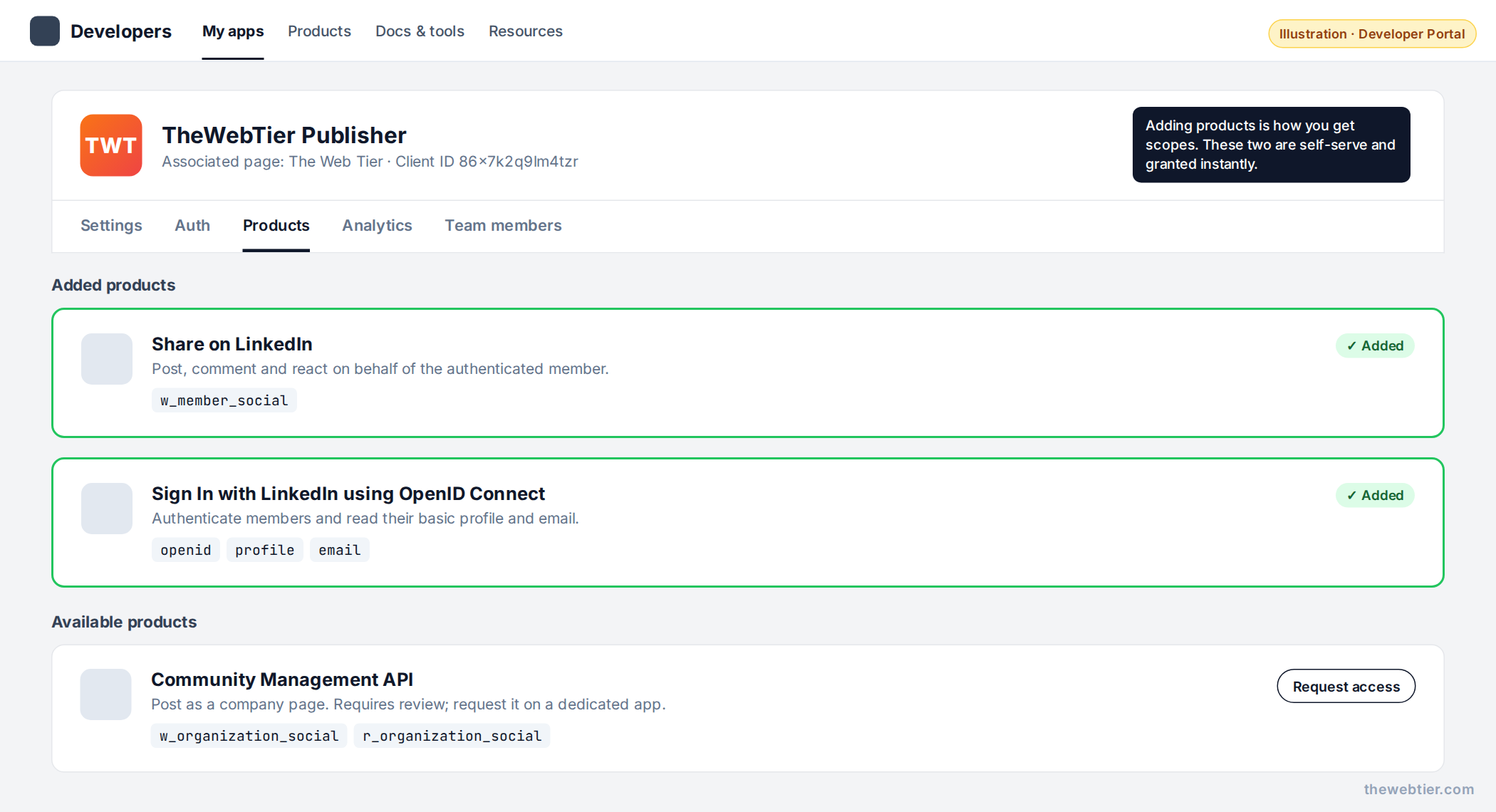 Illustration: the two self-serve products you need.
Also Read: Laravel and PHP
Request these two. Both are self-serve and are usually granted instantly:
| Product | Scopes it grants | Why you need it |
|---|---|---|
| Share on LinkedIn | w_member_social | Create posts as the authenticated member |
| Sign In with LinkedIn using OpenID Connect | openid, profile, email | Read your member ID (sub), which becomes the post author urn:li:person:{id} |
What about posting as a company page?
Posting as your page (urn:li:organization:…) needs w_organization_social, which comes from the Community Management API product. That product:
- requires an access request and review by LinkedIn, and
- at the time of writing, has to be requested on an app that has no other products, so many teams create a second app just for it.
Start with member posting. The code in this series takes the author URN as configuration, so moving to a page later won't need a rewrite. See Community Management API for the review requirements.
Step 4: Configure OAuth on the Auth tab
Open the Auth tab. This is where you'll find your credentials and register redirect URLs.
Also Read: Best Filament Themes and PHP Starter Kits for 2026 (v5-Ready)
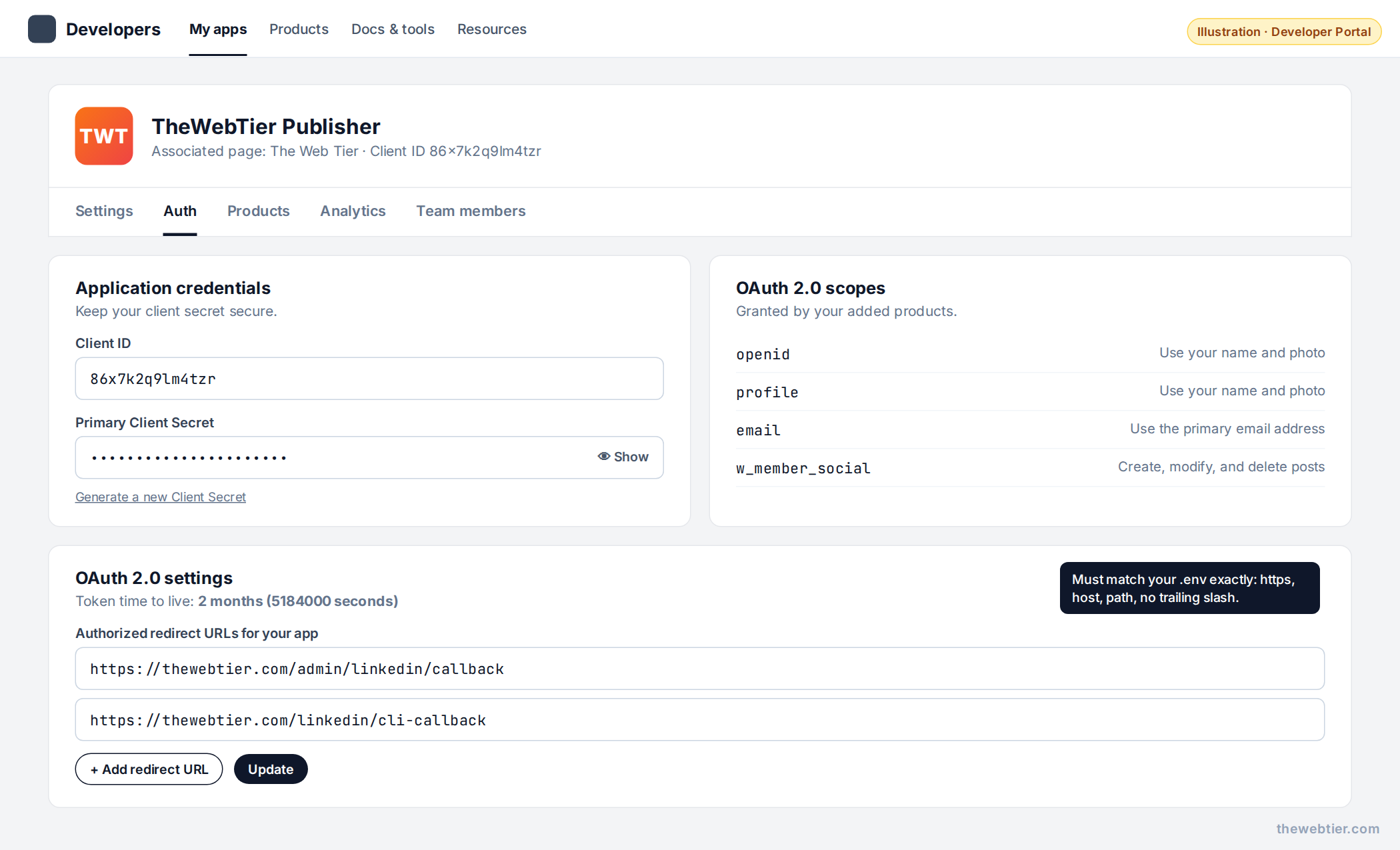 Illustration: the Auth tab after adding redirect URLs. The secret is masked.
4a. Copy the Client ID and Client Secret
Treat the Client Secret like a database password. Never commit it, never put it in a query string, never paste it in a support ticket. If it leaks, use Generate a new Client Secret on this tab.
4b. Add the authorized redirect URLs
Click the pencil next to Authorized redirect URLs for your app and add:
https://yoursite.com/admin/linkedin/callback
https://yoursite.com/linkedin/cli-callback
The first URL is for the one-click web flow and the second is for the linkedin:auth artisan command. Both are built in Part 2.
Also Read: Claude Code & Cursor on Filament: AI Agent Rules That Work - Laravel
LinkedIn's rules for redirect URLs:
- They must be absolute (
https://…), not/admin/linkedin/callback. - Query parameters are ignored when matching.
- They can't contain
#. - The value your app sends must match exactly.
https://www.andhttps://count as different URLs, and so do URLs with and without a trailing slash.
For local development, add your local URL as well (for example a Laravel Herd or Valet .test domain served over HTTPS, or a tunnel URL).
4c. Check the scopes
Under OAuth 2.0 scopes you should see openid, profile, email and w_member_social. If w_member_social is missing, the Share on LinkedIn product wasn't added. Go back to Step 3.
Step 5: Put the credentials in Laravel
Add the values to .env:
LINKEDIN_CLIENT_ID=86xxxxxxxxxxxx
LINKEDIN_CLIENT_SECRET=WPL_AP1.xxxxxxxxxxxxxxxx
LINKEDIN_REDIRECT_URI="${APP_URL}/admin/linkedin/callback"
LINKEDIN_CLI_REDIRECT_URI="${APP_URL}/linkedin/cli-callback"
LINKEDIN_API_VERSION=202609
[email protected]
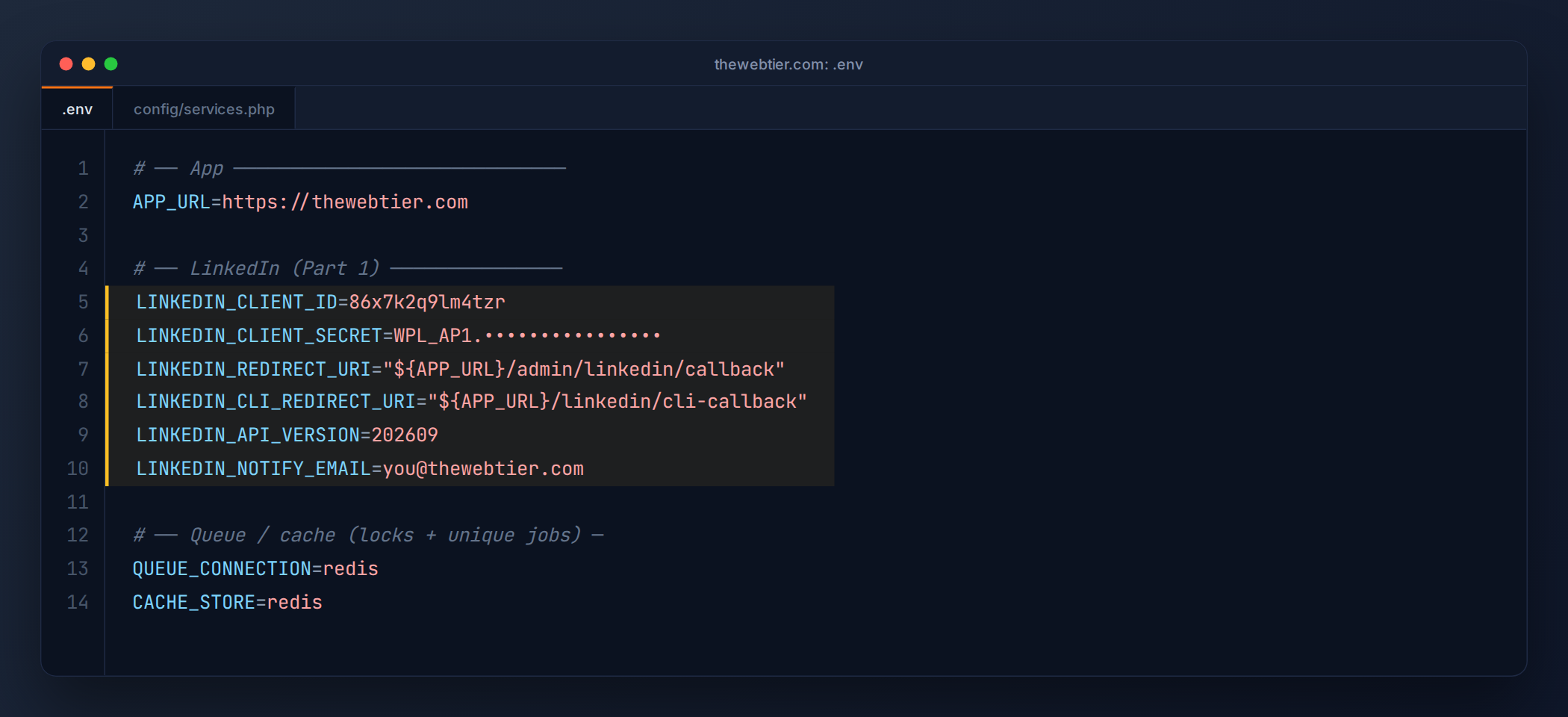 The LinkedIn block in
 .env. Keep APP_URL accurate, because the redirect URIs are built from it.
Also Read: How to Create a WordPress Plugin from Scratch (2026 Guide)
Then register them in config/services.php. We use the key linkedin-openid because that's the name of Laravel Socialite's LinkedIn driver, so Socialite picks it up automatically:
// config/services.php
'linkedin-openid' => [
    'client_id'     => env('LINKEDIN_CLIENT_ID'),
    'client_secret' => env('LINKEDIN_CLIENT_SECRET'),
    'redirect'      => env('LINKEDIN_REDIRECT_URI'),

    // Our own keys (Socialite ignores these)
    'cli_redirect'  => env('LINKEDIN_CLI_REDIRECT_URI'),
    'api_version'   => env('LINKEDIN_API_VERSION', '202609'),
    'notify_email'  => env('LINKEDIN_NOTIFY_EMAIL'),
],
Why LINKEDIN_API_VERSION? Every call to LinkedIn's versioned REST API must send a LinkedIn-Version: YYYYMM header, and LinkedIn sunsets each version after about a year. The October 2025 version, for example, is retired on 15 October 2026. Keeping the version in .env means an upgrade is a config change, not a deploy. Check the versioning page twice a year.
In production, cache the config so env() is only read once:
php artisan config:cache
Step 6 (optional): Smoke-test with the Token Generator
Before writing any OAuth code, you can confirm the app works using LinkedIn's built-in OAuth Token Generator:
- Choose your app.
- Tick
openid,profileandw_member_social. - Click Request access token and approve.
Then call the userinfo endpoint:
curl -s https://api.linkedin.com/v2/userinfo \
  -H "Authorization: Bearer YOUR_TOKEN" | jq
If you see your sub, name and email, the app is configured correctly. This token also lasts 60 days, so it's fine for a quick test. For production you'll generate tokens from Laravel (Part 2) so they can be renewed without manual steps (Part 3).
Troubleshooting checklist
| Symptom | Cause | Fix |
|---|---|---|
unauthorized_scope_error / "Invalid scope" | Product not added | Add Share on LinkedIn / Sign In with LinkedIn using OpenID Connect |
| "The redirect_uri does not match the registered value" | URL mismatch (www, slash, http vs https) | Copy the URL from .env into the Auth tab exactly |
| Can't add a product | Page not verified | Finish Step 2 |
| Everything worked, now 401s | Token expired (60 days) or scopes changed | See Part 3 |
Key takeaways
- LinkedIn gives you scopes through products. For personal posting you need Share on LinkedIn and Sign In with LinkedIn using OpenID Connect.
- Redirect URLs must match exactly and be absolute HTTPS URLs.
- Keep the secret and the API version in
.env, and read them only throughconfig().
Next up
Part 2: Get a LinkedIn OAuth Access Token in Laravel →, where you'll connect your account with Socialite or a plain-PHP artisan command and store the token encrypted.
Further reading: LinkedIn Authentication overview, Getting access to LinkedIn APIs, Laravel configuration docs.