Your plugin is approved and you have an empty Subversion (SVN) repository. In this final part of the series we publish your WordPress plugin: commit the code, tag the first release, make the directory page look professional, ship updates safely and automate the whole thing from GitHub.
Also Read: 25 Best Filament Plugins in 2026 (Free & Paid, v4/v5 Tested)
This is Part 7, the last in the series. If you've just been approved, you're in the right place. If not, start with Part 6.
How WordPress.org distribution works
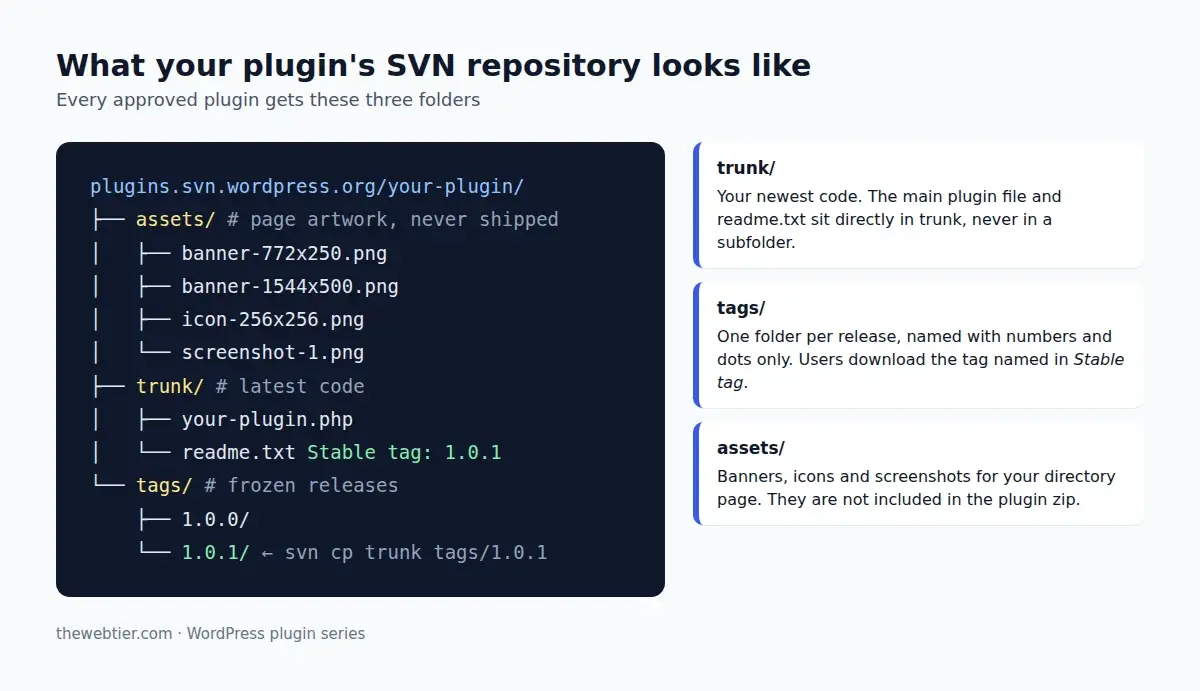
WordPress.org serves plugins from SVN, not Git. Each approved plugin gets a repository at https://plugins.svn.wordpress.org/your-slug/ with three folders:
Also Read: Filament vs Building Your Own Admin Panel: When Is It Worth It?
| Folder | What goes in it |
|---|---|
trunk/ | Your latest code. The main plugin file and readme.txt go directly in trunk/, not in a subfolder. |
tags/ | A frozen copy of every release: tags/1.0.0/, tags/1.0.1/… Users get the tag named in Stable tag. |
assets/ | Banners, icons, screenshots and the Live Preview blueprint. It isn't included in the plugin zip. |
SVN is only for releases. Keep developing in Git and commit to SVN when you ship. Don't push every work-in-progress commit (Guideline 14).
Step 1: Set your SVN password
Your SVN username is your WordPress.org username, which is case-sensitive. The password is not your WordPress.org password. It's a separate SVN password, so a leaked deploy credential can't take over your account.
- Go to your profile's Account & Security settings.
- Generate an SVN password and store it in your password manager.
Step 2: Check out the repository
Install an SVN client first: brew install subversion on macOS, sudo apt install subversion on Debian or Ubuntu, or TortoiseSVN on Windows. Then:
svn checkout https://plugins.svn.wordpress.org/webtier-reading-time webtier-reading-time-svn
cd webtier-reading-time-svn
ls
# assets  tags  trunk
Step 3: Add your code to trunk and commit
Copy the contents of your release zip from Part 5 into trunk/. Use the built files, not your Git working copy with node_modules:
unzip ../webtier-reading-time.zip -d /tmp/release
cp -R /tmp/release/webtier-reading-time/. trunk/

svn add --force trunk
svn status            # A = added, M = modified, ? = not tracked, ! = missing
svn commit -m "Add version 1.0.0" --username thewebtier
SVN asks for your SVN password on the first commit. Your plugin page is now live at wordpress.org/plugins/webtier-reading-time/. It can take a few minutes for the zip to build and the page to appear.
Step 4: Tag the release
Tags are how releases work. Copy trunk into a tag named exactly like your version:
svn copy trunk tags/1.0.0
svn commit -m "Tag version 1.0.0"
Stable tag: 1.0.0 in trunk/readme.txt tells WordPress.org to serve tags/1.0.0/. Tag names use numbers and dots only. v1.0.0 isn't valid.
Also Read: Laravel: Best Filament Themes
Step 5: Make your plugin page look professional
People judge a plugin page in seconds. Add these to the top-level assets/ folder, not trunk/assets:
| File | Size | Notes |
|---|---|---|
banner-772x250.png (or .jpg) | 772 × 250 | Required if you add a banner. Max 4 MB. |
banner-1544x500.png | 1544 × 500 | High-DPI version. |
icon-128x128.png | 128 × 128 | Shown in search results and dashboards. Max 1 MB. |
icon-256x256.png | 256 × 256 | High-DPI version. |
icon.svg | vector | Optional. You still need a PNG fallback. |
screenshot-1.png, screenshot-2.png… | any | Lowercase names. Captions come from == Screenshots == in your readme, one line per file. Max 10 MB each. |
cp ~/design/banner-772x250.png ~/design/icon-256x256.png assets/
cp ~/design/screenshot-*.png assets/
svn add assets/*
svn propset svn:mime-type image/png assets/*.png   # so browsers display them instead of downloading
svn commit -m "Add plugin assets"
Asset changes can take a while to appear, usually minutes but sometimes hours. Full details are in the plugin assets guide.
Screenshot tip: the screenshots in the series (the block in the editor, the settings page and the front end) match the three
== Screenshots ==lines in our readme. Readme captions are also indexed by directory search, so describe what each one shows.
Step 6: Add a Live Preview with a Playground blueprint
WordPress.org can show a Live Preview button that opens your plugin in WordPress Playground, right in the visitor's browser. Commit a blueprint to assets/blueprints/blueprint.json:
{
	"$schema": "https://playground.wordpress.net/blueprint-schema.json",
	"landingPage": "/wp-admin/post-new.php",
	"preferredVersions": {
		"php": "8.3",
		"wp": "latest"
	},
	"steps": [
		{
			"step": "login",
			"username": "admin",
			"password": "password"
		}
	]
}
After committing, committers see a Test Preview button on the plugin page. When it works, a committer switches the preview to public in the plugin's Advanced view. See Previews and Blueprints.
Step 7: Ship an update, the right way
Also Read: Laravel: Filament Blueprint Review
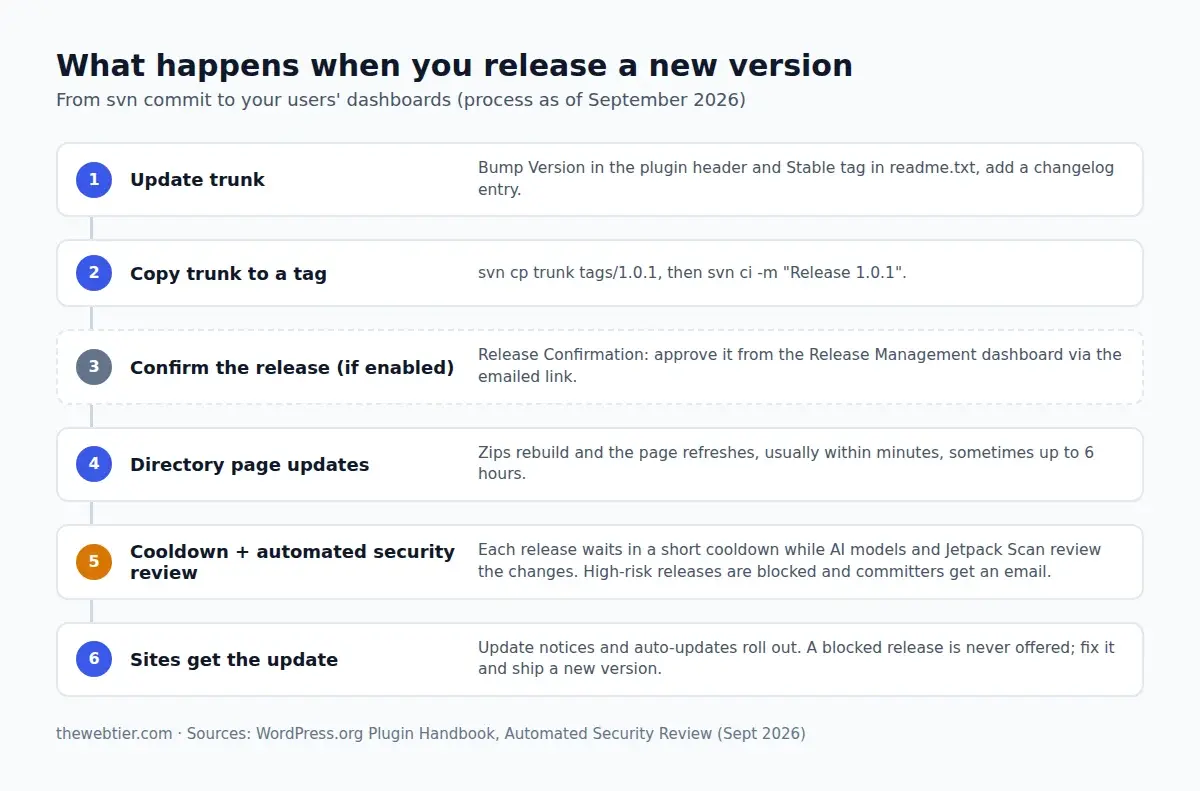
For every release:
- Bump the version everywhere:
Version:in the plugin header,WEBTIER_RT_VERSION,versioninblock.jsonandpackage.json, andStable tag:inreadme.txt. - Add a changelog entry under
== Changelog ==. Users read these before updating. - Build, then copy the files into trunk and commit.
- Tag it:
svn copy trunk tags/1.0.1 && svn commit -m "Tag 1.0.1".
Two safety features are worth knowing about:
- Release Confirmation (opt-in, under the plugin's Advanced tab). New tags aren't released until a committer confirms by email. It protects your users if your SVN credentials leak. It's permanent once enabled, and it also offers phased releases, which delay auto-updates for 24 hours. See Release Confirmation.
- Automated security review (since June 2026). Every release goes through a short cooldown while AI models and Jetpack Scan review the changes. A high-risk release is blocked from the update API, and all committers get an email with the findings. Sites keep the previous version, and the plugin stays listed. The fastest fix is a corrected release. See the Automated Security Review handbook page.
Updating only the readme? To bump
Tested up toafter a new WordPress release, editreadme.txtin bothtrunk/and the current tag, then commit. No new version is needed.
Step 8: Automate deploys with GitHub Actions
Copying files into SVN by hand gets old fast. The widely used 10up WordPress.org Plugin Deploy action (currently 2.3.0) deploys whenever you push a Git tag.
1. Add secrets to your GitHub repository under Settings → Secrets and variables → Actions: SVN_USERNAME (your WordPress.org username) and SVN_PASSWORD (the SVN password from Step 1).
2. Put your directory assets (banners, icons, screenshots, blueprints/blueprint.json) in a .wordpress-org/ folder in your Git repo.
Also Read: Claude Code & Cursor on Filament: AI Agent Rules That Work - Laravel
3. Add .distignore (from Part 5) so dev files never reach SVN.
4. Create .github/workflows/deploy.yml:
name: Deploy to WordPress.org

on:
  push:
    tags:
      - '*'

jobs:
  deploy:
    runs-on: ubuntu-latest
    steps:
      - uses: actions/checkout@v7

      - uses: actions/setup-node@v7
        with:
          node-version: 22
          cache: npm

      - name: Build
        run: |
          npm ci
          npm run build

      - name: Deploy to WordPress.org
        uses: 10up/action-wordpress-plugin-deploy@stable
        env:
          SVN_USERNAME: ${{ secrets.SVN_USERNAME }}
          SVN_PASSWORD: ${{ secrets.SVN_PASSWORD }}
          SLUG: webtier-reading-time
Now a release is:
git commit -am "Release 1.0.1"
git tag 1.0.1
git push origin main --tags
The action copies your files (minus .distignore) into trunk/, creates tags/1.0.1/, syncs .wordpress-org/ into assets/ and commits. For readme and asset changes between releases, add the companion asset update action on pushes to your main branch.
Tip: Run Plugin Check in the same workflow before the deploy step, using the official Plugin Check GitHub Action. A broken release then never reaches SVN.
Step 9: Maintain the plugin
Publishing is the start. Users trust plugins that are clearly looked after:
- Watch your support forum at
wordpress.org/support/plugin/your-slug/. Click Subscribe to get emails for new topics, and mark threads as resolved. - Test every WordPress release. Try the betas (7.2 is due in December 2026), then bump
Tested up to. Plugin Check warns that out-of-date plugins stop appearing in directory searches. - Translations are automatic. Volunteers translate your strings at translate.wordpress.org. You can request translation editors for specific languages.
- Add co-maintainers as committers from the Advanced tab. Every committer needs 2FA.
- Check your stats (active installs, downloads, WordPress and PHP versions) on the Advanced tab, and use them when you decide to raise
Requires PHP. - Security reports come to your plugin email and via the Plugins team. Respond quickly, ship a fix, and credit the reporter.
- Moving on? You can transfer ownership or close the plugin from the Advanced tab's danger zone. Closing is permanent without contacting the Plugins team.
The complete series
Congratulations, you've gone from idea to a published, maintainable plugin. The full series:
- How to Become a WordPress Plugin Developer
- How to Set Up a Local WordPress Development Environment
- How to Create a WordPress Plugin from Scratch
- How to Build a Custom Gutenberg Block
- How to Prepare Your Plugin for the WordPress.org Directory
- How to Submit a Plugin to WordPress.org
- How to Publish and Update Your Plugin with SVN (this post)
FAQ
Do I have to use SVN to publish a WordPress plugin?
For the WordPress.org directory, yes, because it distributes from SVN. But you can develop entirely in Git and let a GitHub Action handle SVN for you.
How long until my update reaches users?
The directory page and zip usually update within minutes. Automatic updates to sites then follow after the security review cooldown, and after 24 more hours if you've enabled phased releases.
Also Read: What Is Jev? TypeSafe AI's 'System One' Model Explained (Pricing, API & Use Cases)
Why isn't my new version showing?
Usually Stable tag in trunk/readme.txt doesn't match an existing folder in tags/, or the version in the plugin header wasn't bumped. Also check your email in case the release is waiting for Release Confirmation or was blocked by the automated review.
Can I delete a version I released by mistake?
Don't delete tags that users may already have. Release a fixed, higher version straight away, and make sure Stable tag points to it.