Our plugin works. Now we need to prepare the WordPress plugin for release, because before anyone else can install it, it has to meet the WordPress.org Plugin Directory's standards. This is the step most first-time authors rush, and the reason most of them wait weeks for a second review.
Also Read: Filament Blueprint Review (2026): Is PHP It Worth It for AI Agents?
This is Part 5 of our series. We take the plugin from Part 3 and Part 4 and:
- write a readme.txt that validates and ranks well in directory search,
- run Plugin Check, the same tool WordPress.org runs on every submission,
- lint the PHP with WordPress Coding Standards, and
- build and test a clean release zip.
Step 1: Write your readme.txt
readme.txt becomes your plugin's page on WordPress.org: the description, installation steps, FAQ, screenshots captions and changelog. It uses a Markdown-like format with a strict header. Here's the complete readme for our plugin:
=== Web Tier Reading Time ===
Contributors:      thewebtier
Tags:              reading time, block, shortcode, posts
Requires at least: 6.8
Tested up to:      7.1
Requires PHP:      7.4
Stable tag:        1.0.0
License:           GPL-2.0-or-later
License URI:       https://www.gnu.org/licenses/gpl-2.0.html

Show an estimated reading time on posts with a block or a shortcode, using a words-per-minute speed you control.

== Description ==

Web Tier Reading Time adds a small "X min read" label to your posts.

* **Reading Time block**: add it anywhere in a post, or inside a Query Loop in your theme templates.
* **Shortcode**: `[webtier_reading_time label="Reading time:"]` for classic content.
* **Your reading speed**: set words per minute under Settings → Reading Time.
* Supports text color, background color, padding and font size from the block sidebar.
* No tracking, no external requests, no settings saved beyond one option.

== Installation ==

1. In your dashboard go to Plugins → Add Plugin and search for "Web Tier Reading Time".
2. Activate the plugin.
3. Go to Settings → Reading Time to set your words per minute (default 200).
4. Insert the Reading Time block in the editor, or use the shortcode.

== Frequently Asked Questions ==

= How is the reading time calculated? =

The plugin counts the words in the post content (shortcodes and HTML removed), divides by your words-per-minute setting and rounds up. The minimum shown is 1 minute.

= Does the plugin remove its data when deleted? =

Yes. Deleting the plugin from the Plugins screen removes its single option from the database.

== Screenshots ==

1. The Reading Time block and its settings in the block editor.
2. The settings page under Settings → Reading Time.
3. The block on the front end.

== Changelog ==

= 1.0.0 =
* Initial release: Reading Time block, shortcode and settings page.

== Upgrade Notice ==

= 1.0.0 =
Initial release.
The header rules that trip people up:
| Field | Rule |
|---|---|
=== Plugin Name === | Should match Plugin Name in your main file. |
Contributors | WordPress.org usernames, comma-separated. Not display names or emails. |
Tags | Up to 5. Extra tags are ignored. Use terms people actually search for. |
Tested up to | The latest WordPress version you tested, major version only: 7.1, not 7.1.2. Keep it current: Plugin Check warns that plugins not marked as tested with the latest WordPress don't show up in directory searches. |
Stable tag | Your plugin's version (1.0.0), matching Version: in the main file. It's not a WordPress version. |
| Short description | The line after the header. 150 characters max, no markup. It's your one-line pitch in search results. |
Directory SEO: WordPress.org search weighs the plugin name, tags, short description and description. Write the short description as a benefit ("Show an estimated reading time…") and use your main keyword naturally in the first paragraph of the Description. Don't stuff keywords. Guideline 12 prohibits readme spam.
Check it with the official readme validator. The readme.txt guide covers every section.
Also Read: Laravel and PHP
Step 2: Run Plugin Check
Plugin Check (PCP) is maintained by the WordPress Performance and Plugins teams. Since October 2024 it runs automatically when you submit a plugin, and errors block the submission. Run it yourself first.
Install it on your dev site:
wp-env run cli wp plugin install plugin-check --activate
Or search for "Plugin Check" under Plugins → Add Plugin.
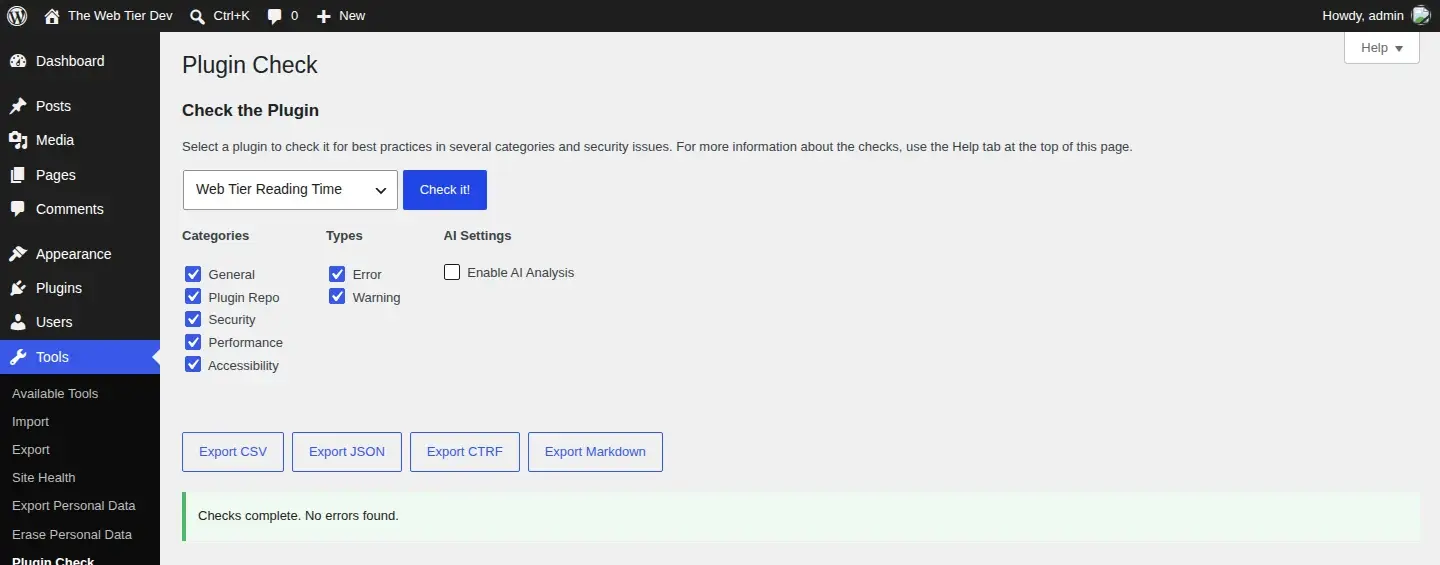
Run it from the dashboard: go to Tools → Plugin Check, choose your plugin, tick the categories and click Check it!
- Plugin Repo. The checks WordPress.org enforces: readme, headers, licence, prohibited code.
- Security. Escaping, sanitization, nonces, direct database queries.
- General, Performance and Accessibility. Best-practice checks. Treat warnings seriously, but they won't block submission.
Our first run found a real problem:
Also Read: What Is Jev? TypeSafe AI's 'System One' Model Explained (Pricing, API & Use Cases)
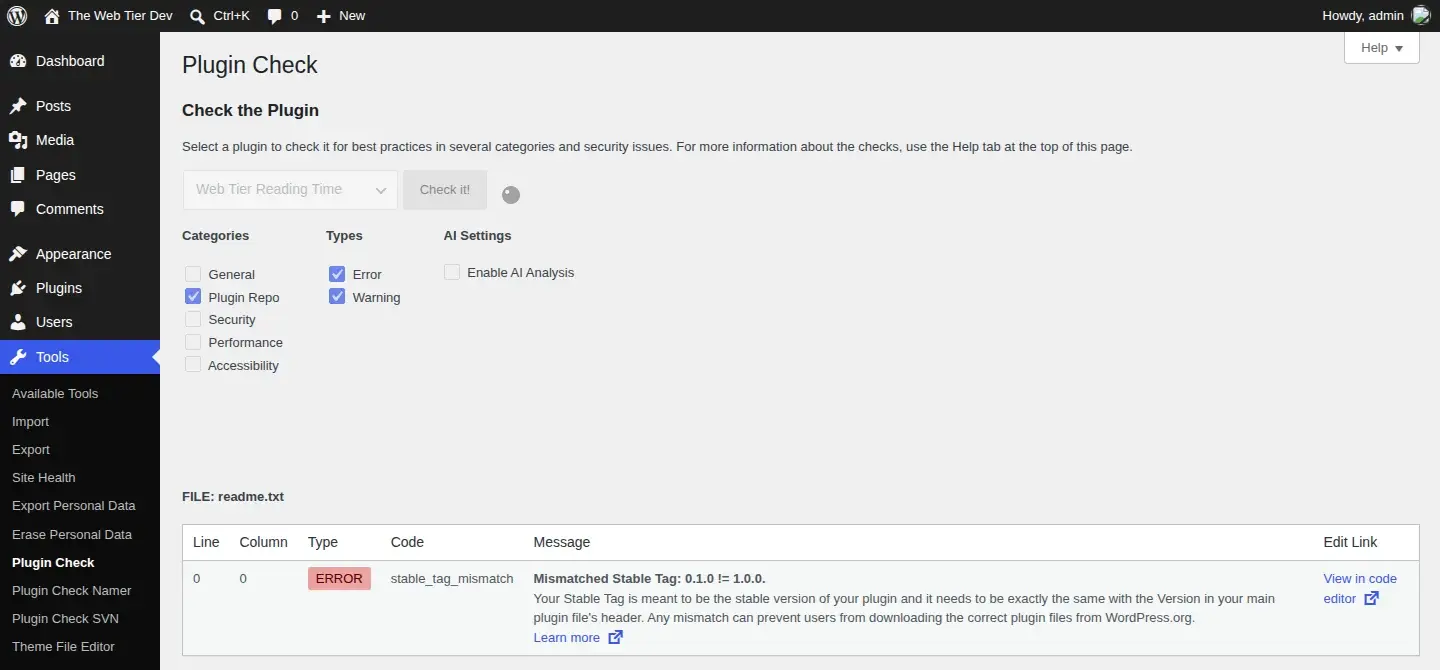
The readme's Stable tag said 0.1.0 (left over from the scaffold) while the plugin header said 1.0.0. On WordPress.org that mismatch could serve people the wrong files. Plugin Check explains every issue and links to the relevant docs.
Here's a second mistake that's easy to make:
Also Read: WordPress Development Guide
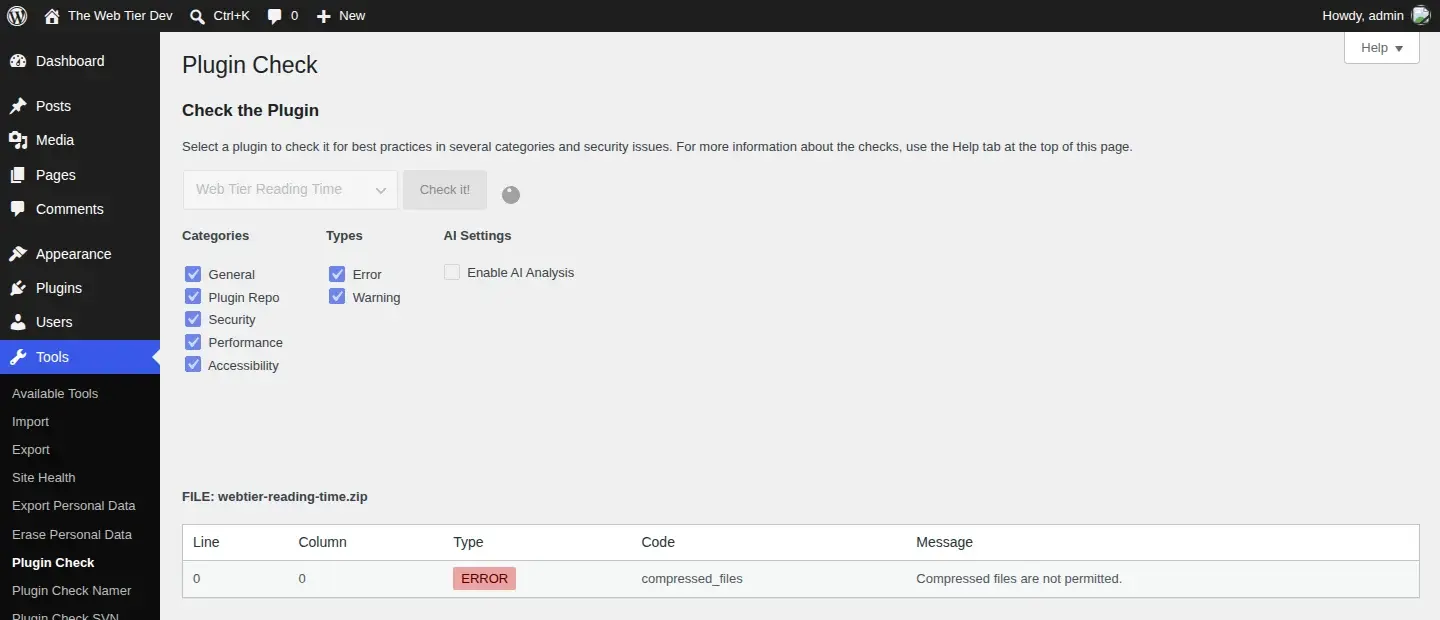
npm run plugin-zip writes webtier-reading-time.zip into the plugin folder, and Plugin Check rejects plugins that contain archives. Move the zip out, and keep *.zip in .gitignore and .distignore.
Run it from the command line, which is useful in CI:
wp-env run cli wp plugin check webtier-reading-time
# Only the checks WordPress.org enforces:
wp-env run cli wp plugin check webtier-reading-time --categories=plugin_repo
After fixing both issues and re-running, we get "Checks complete. No errors found.", the screenshot at the top of this post.
Also Read: How to Become a PHP WordPress Plugin Developer (2026 Roadmap)
Plugin Check's newer tools
Plugin Check 2.x adds a few extras worth knowing about:
- Enable AI Analysis. An optional deeper review that uses an AI provider configured under Settings → Connectors (WordPress 7.0+).
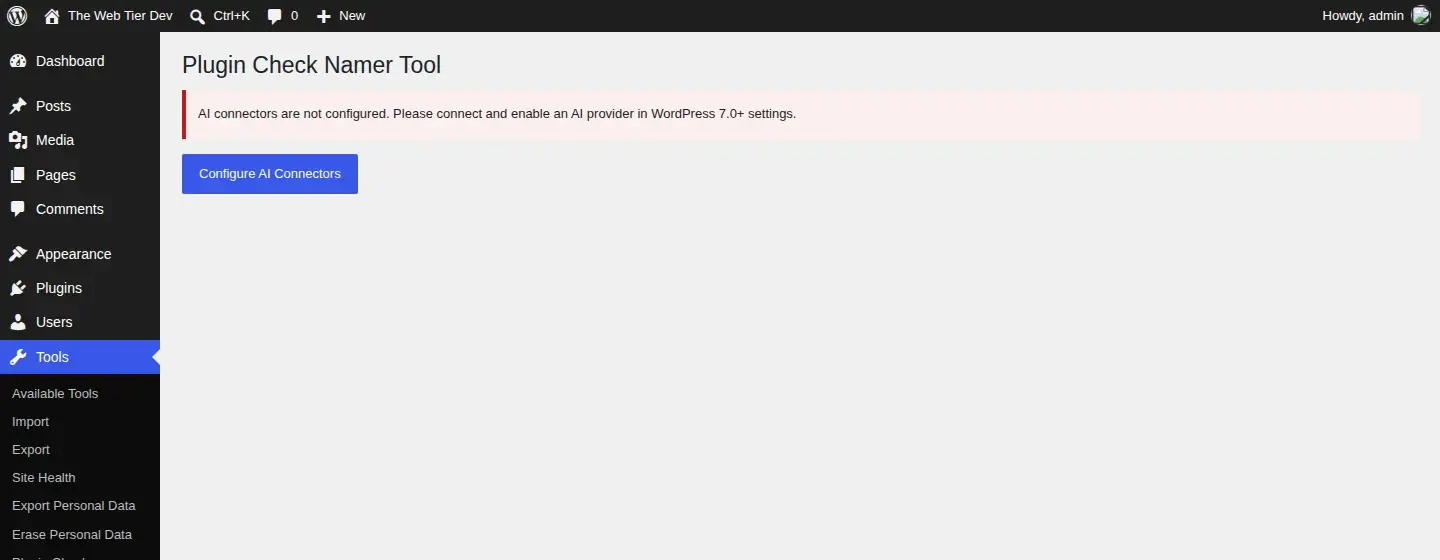
- Plugin Check Namer. Evaluates a proposed plugin name before you commit to a slug. It flags names that are too similar to existing plugins, keyword stuffing and trademark problems. It needs WordPress 7.0+ and an AI connector:
Step 3: Lint with WordPress Coding Standards
Plugin Check covers directory rules. WordPress Coding Standards (WPCS) goes further: formatting, naming, and many more security sniffs. Install it per project with Composer:
composer require --dev \
  wp-coding-standards/wpcs:"^3.4" \
  phpcompatibility/phpcompatibility-wp:"^2.1" \
  dealerdirect/phpcodesniffer-composer-installer
Use WPCS 3.4.1 or newer. It's a security release (July 2026) that fixes a command-execution issue in one sniff.
Add a phpcs.xml.dist to the plugin root:
<?xml version="1.0"?>
<ruleset name="Web Tier Reading Time">
	<file>.</file>
	<exclude-pattern>/vendor/*</exclude-pattern>
	<exclude-pattern>/node_modules/*</exclude-pattern>
	<exclude-pattern>/build/*</exclude-pattern>

	<arg name=extensions value="php"/>
	<arg value="sp"/>

	<rule ref="WordPress"/>
	<rule ref="PHPCompatibilityWP"/>
	<config name=testVersion value="7.4-"/>
	<config name=minimum_wp_version value="6.8"/>

	<rule ref="WordPress.WP.I18n">
		<properties>
			<property name=text_domain type=array>
				<element value="webtier-reading-time"/>
			</property>
		</properties>
	</rule>
	<rule ref="WordPress.NamingConventions.PrefixAllGlobals">
		<properties>
			<property name=prefixes type=array>
				<element value="webtier_rt"/>
			</property>
		</properties>
	</rule>
</ruleset>
Then run:
vendor/bin/phpcs          # report problems
vendor/bin/phpcbf         # auto-fix formatting
npm run lint:js           # ESLint for the block code
npm run lint:css          # Stylelint for the SCSS
testVersion 7.4- checks that nothing in your code needs a newer PHP than the Requires PHP: 7.4 you promised in the header.
Step 4: A final security and quality review
Tools find patterns. Reviewers also read your code. Go through this list by hand:
- Every PHP file starts with the
ABSPATH(orWP_UNINSTALL_PLUGIN) guard. - All output is escaped late:
esc_html(),esc_attr(),esc_url(),wp_kses_post(). - All input is unslashed and sanitized. Forms and actions check a nonce and a capability.
- Every function, option, constant, global variable, shortcode and handle has your prefix.
- No remote requests, tracking or CDN assets unless the user opts in. Bundle your own assets.
- You use WordPress's bundled libraries (jQuery, React through
wp.element), not your own copies. - No debugging code left in:
var_dump(),error_log(),console.log(). - No notices in
debug.logwithWP_DEBUGon, including on activation, deactivation and deletion. - Every user-facing string is translatable with the correct text domain.
Step 5: Build a clean release zip
Your release zip should contain what the plugin needs to run, plus readable source. No node_modules, no dev config, no nested zips. Guideline 4 requires code to be human-readable. If you ship minified JavaScript, include the src/ folder or link to your public repository in the readme.
Also Read: Publish a WordPress Plugin with SVN & GitHub Actions
Tell wp-scripts plugin-zip exactly what to include with a files list in package.json:
"files": [
	"build",
	"includes",
	"src",
	"readme.txt",
	"uninstall.php",
	"webtier-reading-time.php"
]
If there's no files list, it falls back to the Plugin Handbook's defaults:
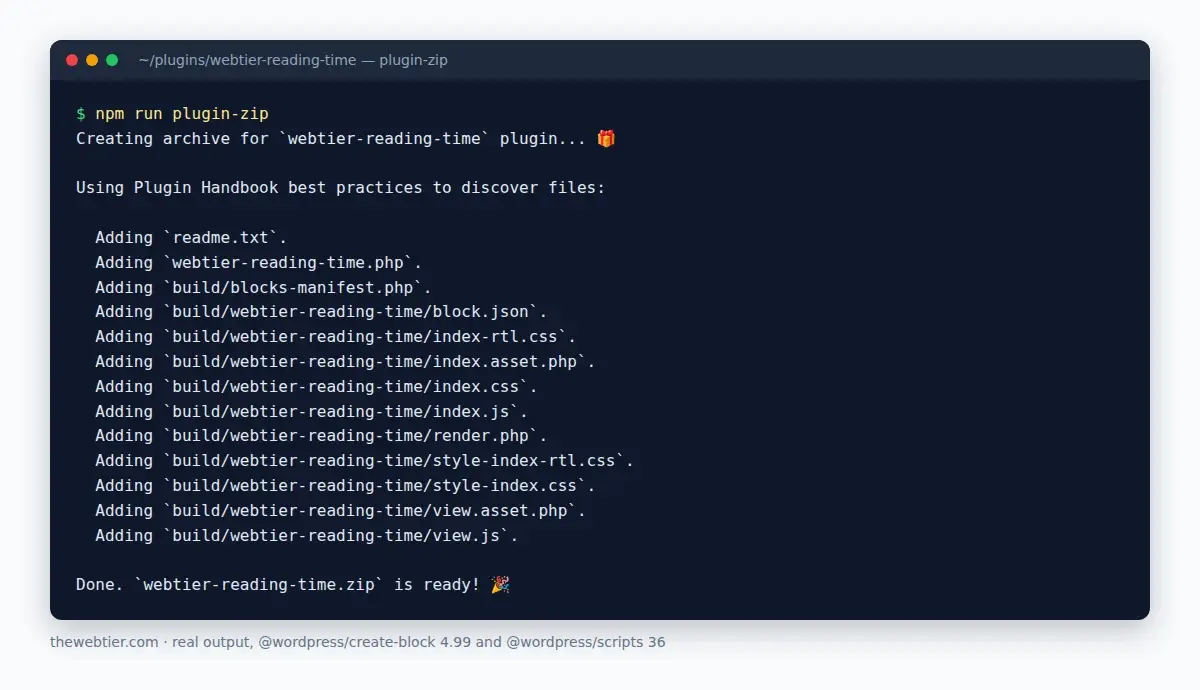
npm run build
npm run plugin-zip
mv webtier-reading-time.zip ../   # keep it out of the plugin folder
If you deploy from Git later (Part 7), a .distignore file does the same job for the deploy action:
/.git
/.github
/node_modules
/vendor
/.wordpress-org
.distignore
.gitignore
.wp-env.json
composer.json
composer.lock
package-lock.json
phpcs.xml.dist
*.zip
Step 6: Test the zip on a fresh site
This catches the classic "works on my machine" problem: a missing build/ folder, a file-name case mismatch, or a dev dependency you forgot to bundle.
- Start a clean site with
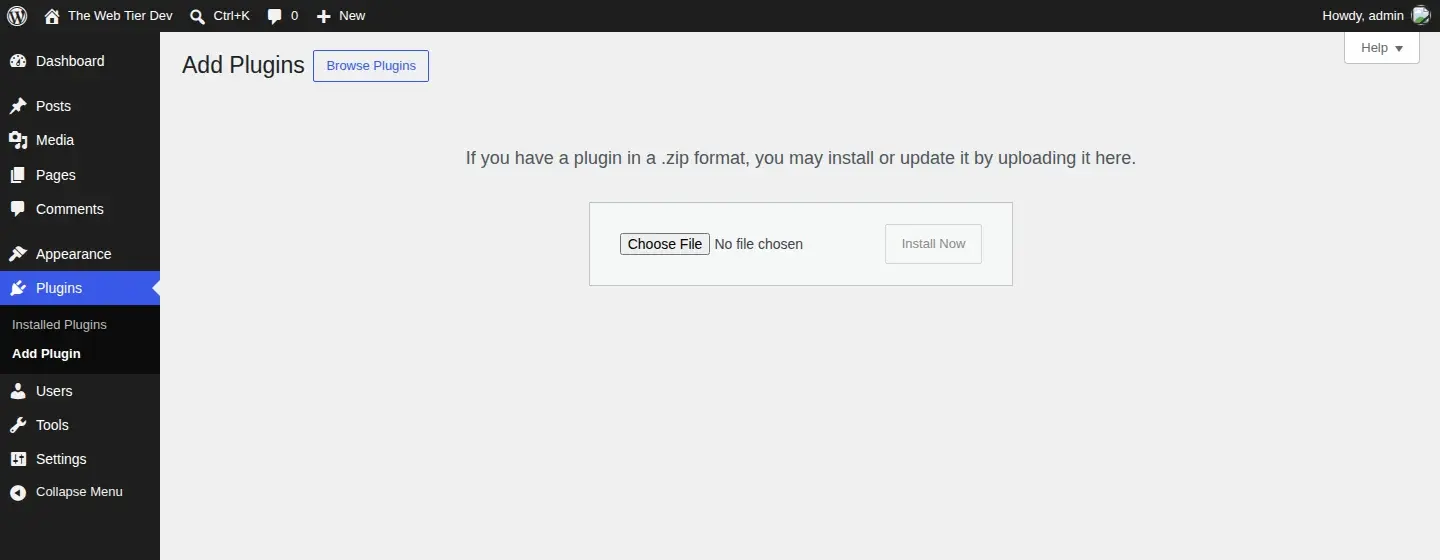
npx @wp-playground/cli@latest server --login, orwp-env clean all. - Go to Plugins → Add Plugin → Upload Plugin and upload your zip:
- Activate it, use every feature, then deactivate and delete it. Watch
debug.logthe whole time. - Repeat on the oldest versions you claim to support (
--wp=6.8 --php=7.4).
Your pre-submission checklist
Plugin Nameis unique, has no trademarks at the start, and doesn't include "WordPress" or "Plugin".Version=Stable tag.Tested up to: 7.1.Requires at leastandRequires PHPare accurate.- Text domain = slug = folder name.
- readme.txt passes the validator. The short description is ≤150 characters. At most 5 tags.
- Plugin Check shows no errors (fix the warnings too).
- PHPCS is clean, or any ignores are justified with comments.
- The zip is under 10 MB and installs cleanly on a fresh site.
- Your WordPress.org account has 2FA enabled.
FAQ
Does Plugin Check guarantee approval?
No. It catches the automated issues, and errors block submission, but a human reviewer still reads your code and readme. Clean Plugin Check results mean the review focuses on real questions instead of basic fixes.
Should the zip include the src folder and package.json?
Including src/ is recommended when you ship built JavaScript, so the code is human-readable (Guideline 4). package.json is optional. Linking to a public GitHub repository in your readme also satisfies the requirement.
What should "Tested up to" say if WordPress 7.2 is in beta?
The latest stable major version you've tested, which is 7.1 in September 2026. Update it when 7.2 ships and you've tested against it. You can change the readme in SVN without releasing a new version.
Next up
Everything's ready. In Part 6: How to Submit a Plugin to the WordPress.org Plugin Directory we upload the zip, go through the review process, and look at the most common reasons plugins get sent back.