WordPress runs a huge share of the web, and almost every site depends on plugins. Anyone can become a WordPress plugin developer. You don't need a company, a licence or anyone's permission. You need a WordPress.org account, a useful idea, and code that follows the rules.
Also Read: Claude Code & Cursor on Filament: AI Agent Rules That Work
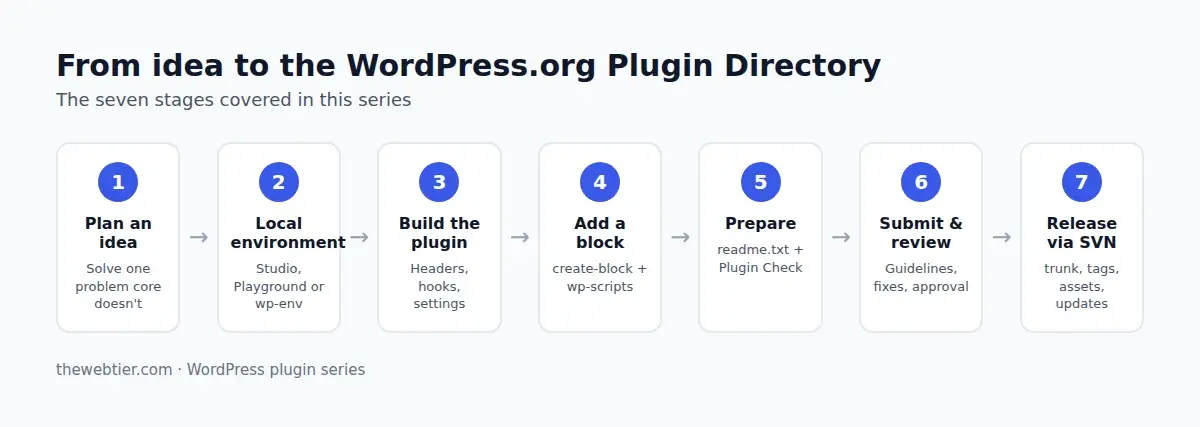
This is Part 1 of a 7-part series on The Web Tier. Together the posts cover the whole process, from an empty folder to a plugin anyone can install from their dashboard. Across the series we build a real plugin, Web Tier Reading Time, which shows an estimated reading time as a block or a shortcode. Every screenshot comes from a real WordPress 7.1.2 install.
This post covers what to do before you write any code: the skills you need, the accounts to create, the rules to learn, and the plan for the rest of the series.
Also Read: News: What Is Jev?
What a WordPress plugin developer actually does
A plugin is a folder of PHP, JavaScript and CSS that hooks into WordPress to add or change behaviour, without editing WordPress core. As a plugin developer you will:
- Build features with WordPress APIs: hooks, the Settings API, the REST API, blocks and more.
- Keep them secure. Your code runs on other people's sites, so every input is sanitized and every output is escaped.
- Package and publish your plugin, usually to the free WordPress.org Plugin Directory, which is built into every WordPress dashboard.
- Maintain it. Test it against each WordPress release, answer support questions and ship updates.
That last part matters more than most beginners expect. Publishing is the start of the work. The authors people trust are the ones who keep their plugins up to date.
Also Read: Tooling: Securing WordPress -
The skills you need (and the ones you can learn as you go)
You don't need to master everything before starting. This is what the series assumes, from most to least important:
| Skill | Why you need it | How deep to go at first |
|---|---|---|
| PHP | Plugins are loaded and run by PHP. WordPress 7.x needs PHP 7.4 or newer and recommends 8.3+. | Functions, arrays, if/foreach, including files. OOP helps but isn't required. |
| WordPress hooks | Actions and filters are how plugins plug in. | Understand add_action() and add_filter(). We cover them in Part 3. |
| HTML and CSS | Settings screens, front-end output and block styles. | The basics. |
| JavaScript (and a bit of React) | The block editor is written in React. | Enough to read a component. create-block writes the boilerplate for you (Part 4). |
| Command line, Node and Git | Local environments, build tools and deploying. | Running commands and making commits. |
| Security basics | Sanitizing, escaping, nonces and capability checks. | Non-negotiable. We cover them in Part 3. |
If PHP is new to you, Learn WordPress has free courses. The official Plugin Developer Handbook is the reference you'll use most.
Also Read: Best 5 WordPress Reviews Website Security Plugins
Step 1: Choose a first plugin idea that can actually ship
The best first plugin is small, useful and clearly scoped. Some rules of thumb:
- Solve one problem well. "Show reading time on posts" is a good first project. "A complete membership system" is not.
- Check what already exists. Search the Plugin Directory, and check WordPress core too. For example, recent WordPress versions include a core Time to Read block, so our Reading Time plugin is mainly a learning project that adds a shortcode, a settings page and different styling. That's fine, but know where you stand.
- Avoid trademarks in the name. The directory won't accept a plugin whose name starts with someone else's brand (for example "WooCommerce Reading Time") unless you own that brand. Using "for WooCommerce" at the end is generally fine.
- Pick a unique prefix. Everything you name globally (functions, options, constants) should share a prefix. Ours is
webtier_rt_.
Step 2: Create your WordPress.org account
Your WordPress.org account is your identity as a plugin author. It's how you submit plugins, commit code, answer support threads and appear in the Contributors list on your plugin page.
- Go to login.wordpress.org/register and choose a username. Usernames use lowercase letters and numbers only. Choose carefully, because this is the name that appears on your plugins.
- Confirm your email and set a password.
- Turn on two-factor authentication (2FA). Since October 2024 it's mandatory for anyone who owns or commits to a plugin. You can't submit without it.
- Fill in your public profile at profiles.wordpress.org. Reviewers and users will look at it.
You'll add one more credential later: a separate SVN password for pushing code to WordPress.org. We set that up in Part 7.
Step 3: Learn the rules before you write code
The Plugin Directory has 18 detailed guidelines. Reading them now takes about 15 minutes and saves weeks of back-and-forth in review. The ones that surprise new authors most:
- GPL-compatible licence (Guideline 1). Everything in the plugin, including libraries, must be GPL-compatible. Most plugins use
GPL-2.0-or-later. - No trialware (Guideline 5). You can't ship features that are locked or expire until someone pays. Freemium works through a free plugin plus separate paid add-ons sold elsewhere.
- SaaS is fine (Guideline 6). A plugin can connect to a paid external service, as long as that service does real work and isn't just a licence check.
- No tracking without consent (Guideline 7). No phoning home, analytics or remote requests unless the user opts in.
- Updates only from WordPress.org (Guideline 8). Plugins on the directory can't install or update code from your own servers.
- Don't hijack the dashboard (Guideline 11). Upsell notices must be sparing and dismissible.
- Use WordPress's bundled libraries (Guideline 13). Don't ship your own copy of jQuery.
Step 4: Set up your tools
In Part 2 we set up a local environment properly. For now, make sure you have:
- A code editor. VS Code with a PHP extension such as Intelephense works well.
- Node.js 22.22.2 or newer (or Node 24.15+). The current
@wordpress/scripts36 won't install on older versions. - Git, and a GitHub or GitLab account for your source code.
- Docker Desktop if you want
wp-env, or WordPress Studio if you'd rather use a desktop app.
Step 5: Join the community
Being a plugin developer is easier when you're connected to the people who build WordPress:
- Make WordPress (make.wordpress.org) is where the contributor teams post updates. Follow the Plugins team blog for rule changes and the Core blog for developer notes on each release.
- Making WordPress Slack. Log in with your WordPress.org account at make.wordpress.org/chat to ask questions and follow discussions.
- The developer blog. developer.wordpress.org/news publishes a monthly "What's new for developers" roundup, which is the easiest way to keep up.
- Contribute back. Translating, testing or answering forum questions all count. Five for the Future is the formal pledge programme for individuals and companies.
What's new in WordPress 7.x for plugin developers
This series targets WordPress 7.1 "Mary Lou" (August 2026). These are the developer-facing changes in the 7.x releases worth knowing about:
- The post editor is always iframed in 7.1, whatever
apiVersionyour blocks use. Styles meant for the editor must be loaded properly (throughblock.jsonoradd_editor_style()) and not injected into the admin page. See the 7.1 iframe dev note. - The Abilities API (added in 6.9, expanded in 7.1) lets plugins register "abilities" that other code and AI agents can discover and run.
- The WP AI Client and Connectors (7.0) give plugins a provider-agnostic way to call AI models. The site owner manages the credentials under Settings → Connectors.
- PHP-only blocks (7.0) let you register a simple server-rendered block without any JavaScript build.
- PHP 7.4 is the minimum from WordPress 7.0, because 7.2 and 7.3 were dropped.
The WordPress 7.1 Field Guide has the full list.
Also Read: How Can TimberWP Elevate Your Website? - PHP
How you can make money from plugins (within the rules)
A plugin in the WordPress.org directory has to be free, but many developers build businesses around one:
- Freemium add-ons. A free core plugin on WordPress.org, plus paid add-on plugins sold and updated from your own site.
- SaaS. The plugin connects to a paid service you run, such as an API, a CDN or a backup service.
- Services. Custom development, support contracts or setup work.
- Selling outside WordPress.org entirely. You distribute from your own site and use the
Update URIplugin header with your own update server. The directory's rules then don't apply, but you lose its reach.
The roadmap for this series
| Part | Topic | What you'll have at the end |
|---|---|---|
| 1 | Becoming a plugin developer (this post) | An account with 2FA, an idea and the rules |
| 2 | Local development environment | WordPress 7.1 running locally with debugging on |
| 3 | Create a plugin from scratch | A working plugin with a settings page and shortcode |
| 4 | Build a custom Gutenberg block | A dynamic Reading Time block |
| 5 | Prepare for the directory | A clean Plugin Check report and a release zip |
| 6 | Submit to WordPress.org | A plugin through review and approved |
| 7 | Publish and update with SVN | A live plugin page and a release workflow |
FAQ
Do I need to know React to build WordPress plugins?
No. Many plugins are pure PHP: settings pages, shortcodes, REST endpoints, WP-CLI commands, integrations. You need some React only for block editor features, and @wordpress/create-block generates most of that code for you.
Is it free to publish a plugin on WordPress.org?
Yes. Hosting, the review, translations through translate.wordpress.org, support forums and download stats are all free.
Also Read: The Best WordPress plugins for Event Management in 2022
How long does plugin review take?
It varies with the queue. The Plugin Handbook says the team aims to reply within about 10 business days. In mid-September 2026 the team reported around 500 plugins waiting on a reviewer. Most delays come from authors not replying to review emails. We cover how to avoid that in Part 6.
Can I sell a plugin on WordPress.org?
Not directly. Everything hosted there must be free and GPL. You can link to paid add-ons or a paid service, following Guidelines 5, 6 and 11.
Next up
In Part 2: How to Set Up a Local WordPress Development Environment we get WordPress 7.1 running on your machine with wp-env, WordPress Studio or Playground, and turn on the debugging settings every plugin developer should use.