Every plugin in this series is built and tested on a local WordPress development environment, a copy of WordPress that runs on your own computer. It's fast, it's free, and nobody sees your mistakes. You can break it, reset it and try again in seconds.
Also Read: Claude Code & Cursor on Filament: AI Agent Rules That Work
This is Part 2 of our WordPress plugin development series. In Part 1 we covered the skills and accounts you need. Here we get WordPress 7.1 running locally, choose the right tool for plugin work, and turn on the debug settings that catch problems before your users do.
What your machine needs
Whichever tool you pick, check these first:
Also Read: News: What Is Jev?
| Requirement | Version | Why |
|---|---|---|
| Node.js | 22.22.2+ or 24.15+ | @wordpress/scripts 36 (used to build blocks) refuses older versions. create-block itself needs 20.10+. |
| npm | Comes with Node | Installs the build tools. |
| Git | Any recent version | Version control. wp-env also uses it. |
| Docker Desktop | Latest | Only needed for wp-env's default runtime. |
| PHP (inside the environment) | 8.3 recommended, 7.4 minimum | WordPress 7.x requirements. |
The easiest way to get the right Node version is a version manager such as nvm (or nvm-windows / fnm on Windows):
nvm install 22
nvm use 22
node -v   # v22.22.2 or newer
Tip: If
npm installshowsEBADENGINEor "Unsupported engine" for@wordpress/scripts, your Node version is too old. Upgrade Node rather than forcing the install.
Option 1: wp-env (Docker), the official plugin workflow
@wordpress/env (wp-env) is the WordPress project's own tool. It starts WordPress in Docker, with your plugin folder mounted and activated, using one command. It's what core contributors use, and it's our recommendation for this series.
1. Install it globally (the current version is 11.x):
npm -g install @wordpress/env
2. Create your plugin folder and add a .wp-env.json file to it:
mkdir webtier-reading-time && cd webtier-reading-time
git init
{
	"$schema": "https://schemas.wp.org/trunk/wp-env.json",
	"phpVersion": "8.3",
	"plugins": [ "." ],
	"config": {
		"WP_DEBUG": true,
		"WP_DEBUG_LOG": true,
		"WP_DEBUG_DISPLAY": false,
		"SCRIPT_DEBUG": true
	}
}
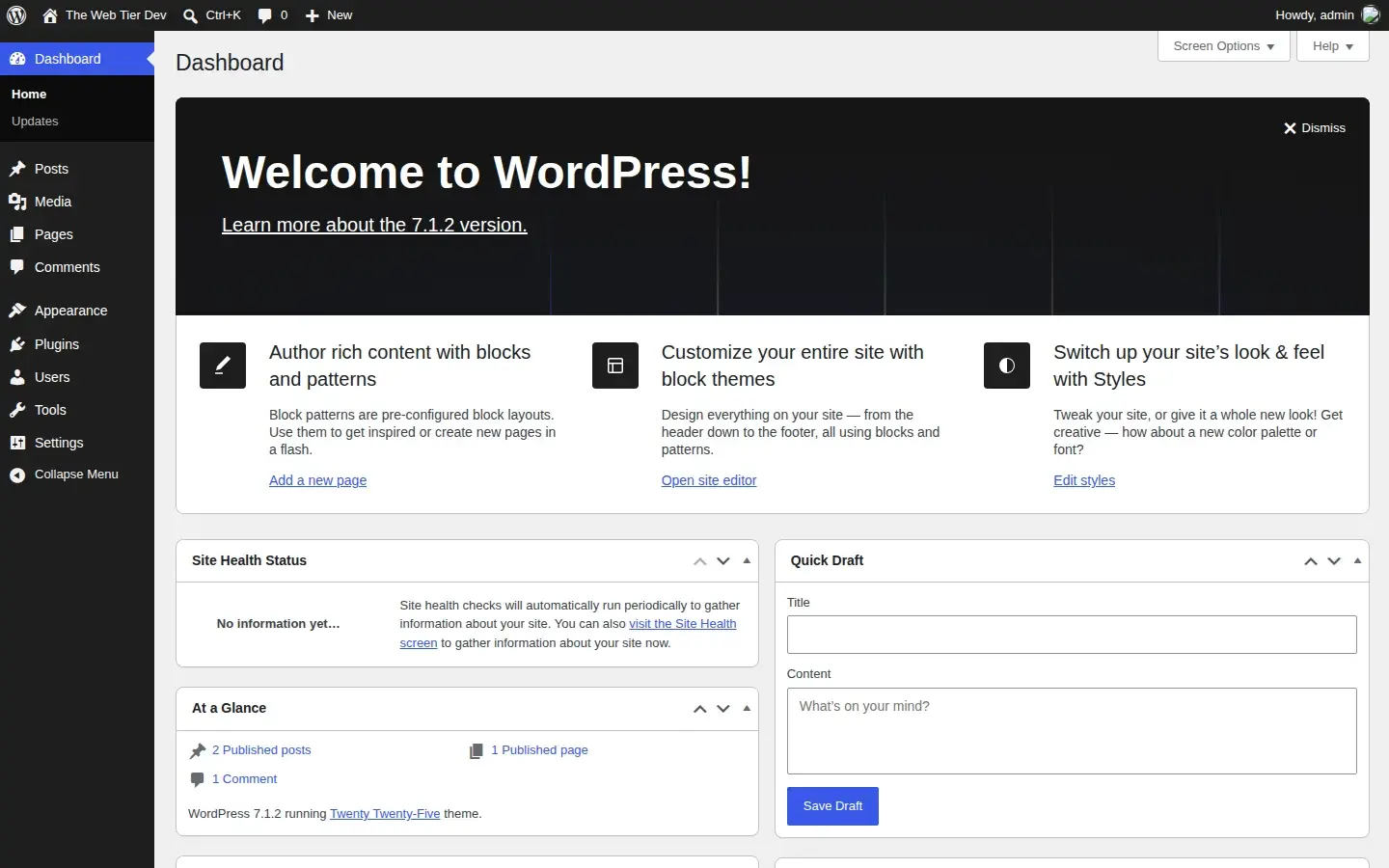
"plugins": [ "." ] tells wp-env to mount the current folder as a plugin and activate it. Leaving out core gives you the latest stable WordPress, which is 7.1.2 at the time of writing.
3. Start it:
wp-env start
The first run downloads the Docker images and takes a few minutes. After that it starts in seconds. The site is usually at http://localhost:8888 (the terminal prints the exact URL). The login is admin / password.
Also Read: WordPress Development Guide
Useful commands:
wp-env run cli wp plugin list      # run WP-CLI inside the environment
wp-env logs                        # PHP and web server logs
wp-env stop                        # stop the containers
wp-env clean all                   # reset the database to a fresh install
wp-env destroy                     # remove everything
No Docker? wp-env now has an experimental Playground runtime that runs WordPress in WebAssembly with SQLite:
wp-env start --runtime=playground. It doesn't support everything (for examplewp-env run), but it's handy on locked-down machines.
Option 2: WordPress Studio, a desktop app with no terminal needed
WordPress Studio is a free, open-source desktop app from WordPress.com for macOS, Windows and Linux. You create a site with a click, and it runs without Docker.
Why plugin developers like it:
- Quick setup. Create a site, open its folder, and drop your plugin into
wp-content/plugins/. - Preview sites. Push a temporary public copy to WordPress.com to share with a client or tester. No tunnels needed.
- Studio CLI.
npm i -g wp-studiogives youstudio site create,studio site startandstudio wp …for scripting. - Blueprints and Sync. Start sites from a recipe, or push and pull themes, plugins and databases.
For plugin work, symlink your plugin's Git folder into the Studio site so you edit one copy:
# macOS / Linux
ln -s ~/code/webtier-reading-time ~/Studio/my-site/wp-content/plugins/webtier-reading-time
Option 3: WordPress Playground CLI, for instant throwaway sites
WordPress Playground runs WordPress in WebAssembly, so there's nothing to install except Node. The Playground CLI is ideal for quick tests and for checking your plugin on a specific WordPress or PHP version.
From inside your plugin folder:
# Simple mode: detects that you're in a plugin, mounts it, logs you in, opens the browser
npx @wp-playground/cli@latest start

# Manual mode: choose versions and mounts yourself
npx @wp-playground/cli@latest server \
  --wp=7.1 --php=8.3 --login \
  --mount=.:/wordpress/wp-content/plugins/webtier-reading-time
The server runs on http://127.0.0.1:9400 by default. Change the WordPress version (--wp=6.9) to test compatibility with older releases in seconds.
Also Read: WordPress Development: Prepare a WordPress
Which should you choose?
| wp-env | WordPress Studio | Playground CLI | |
|---|---|---|---|
| Needs Docker | Yes (or experimental Playground runtime) | No | No |
| Database | MariaDB | SQLite | SQLite |
| Best for | Serious plugin work, tests, CI | Visual workflow, client previews | Quick tests, version matrix |
| WP-CLI | wp-env run cli wp … | studio wp … | Built into blueprints |
| Xdebug | Yes (--xdebug) | Check the current release notes | Yes (--xdebug) |
For this series we use wp-env in the commands, but everything works in any of the three.
Turn on debugging (don't skip this)
A plugin that works with debugging off can still be full of notices and deprecations. The Plugin Review team tests with debugging on, so you should too. The constants to know:
| Constant | Value | What it does |
|---|---|---|
WP_DEBUG | true | Reports PHP errors, notices and WordPress deprecations. |
WP_DEBUG_LOG | true | Writes them to wp-content/debug.log. |
WP_DEBUG_DISPLAY | false | Keeps them out of the page HTML, which breaks block editor requests. |
SCRIPT_DEBUG | true | Loads unminified core JS and CSS, so errors are readable. |
WP_ENVIRONMENT_TYPE | 'local' | Lets code check wp_get_environment_type(). |
With wp-env these go in the config block shown above. In any other install, add them to wp-config.php above the line /* That's all, stop editing! */.
Also Read: How to Submit a Plugin PHP to WordPress.org (and Pass Review)
Watch the log while you work:
tail -f wp-content/debug.log
# or with wp-env:
wp-env logs --watch
Tip: Since WordPress 6.7 you may see "Translation loading for the
your-plugindomain was triggered too early". It means your code called a translation function before theinitaction. We show how to avoid it in Part 3.
Helpful plugins and tools for your dev site
- Query Monitor shows PHP errors, hooks, database queries, HTTP calls and enqueued scripts on every page.
- Plugin Check is the official pre-submission checker. We use it in Part 5.
- WP-CLI is built into wp-env, Studio and Playground, and is great for creating test content (
wp post generate --count=20). - Your editor. VS Code with PHP Intelephense, ESLint and the WordPress snippets extensions.
Create the plugin skeleton
With the environment running, create the folder structure we'll fill in across the series:
webtier-reading-time/
├── .wp-env.json
├── .gitignore
├── webtier-reading-time.php   ← main plugin file (Part 3)
├── includes/                  ← PHP helpers and settings (Part 3)
├── src/                       ← block source (Part 4)
├── build/                     ← compiled block, generated (Part 4)
├── readme.txt                 ← directory readme (Part 5)
└── uninstall.php              ← clean-up on delete (Part 3)
A starter .gitignore:
node_modules/
*.zip
.DS_Store
wp-content/debug.log
Commit it, and you're ready to write code.
FAQ
What's the best local WordPress development environment for beginners?
If you're comfortable with a terminal, use wp-env: it matches how the WordPress project works and is easy to reset. If you'd rather avoid Docker and the command line, use WordPress Studio.
Can I use Local, MAMP, XAMPP or DDEV instead?
Yes. Any environment that runs WordPress 7.1 with PHP 8.x works. The plugin code is the same. You'll just set debug constants in wp-config.php yourself.
Also Read: Publish a WordPress Plugin with SVN & GitHub Actions
Why does wp-env say port 8888 is in use?
Another server is using that port. Start on a different one with WP_ENV_PORT=8890 wp-env start, or set "port" in .wp-env.json.
Next up
In Part 3: How to Create a WordPress Plugin from Scratch we write the plugin header, hook into WordPress with actions and filters, build a settings page with the Settings API, and add the security basics every plugin needs.