
The short answer
You type example.com, press Enter, and a page appears in under a second. In that second, your browser and dozens of machines around the world run a relay race with at least seven legs.
Quick answer: When you type a URL and press Enter, the browser:
- Parses the URL and checks its caches and HSTS list.
- Resolves the domain name to an IP address through DNS.
- Opens a TCP connection to that IP (or a QUIC connection for HTTP/3).
- Performs a TLS handshake to encrypt the connection.
- Sends an HTTP request, which may pass through a CDN and a load balancer.
- Receives an HTTP response with a status code, headers and HTML.
- Parses the HTML and CSS, runs JavaScript, and paints pixels on the screen.
This is also one of the most common software engineering interview questions, because every answer reveals how deep your understanding goes. The rest of this article walks through each step, and links to deep dives on the pieces that deserve their own article.
Step 1: The browser parses the URL
Before any network traffic happens, the browser decides what you actually typed. The address bar doubles as a search box, so the first question is: is this a URL or a search query?
If the text looks like a domain (it has a dot and a valid top-level domain, like example.com), the browser treats it as a URL. If it looks like words (best pizza near me), it sends the text to your default search engine instead.
Anatomy of a URL
Take https://www.example.com:443/blog/post?id=42#comments. The browser splits it into parts, as described in MDN's guide to URLs:
| Part | Example | What it tells the browser |
|---|---|---|
| Scheme | https | Which protocol to use |
| Host | www.example.com | Which server to contact |
| Port | 443 | Which "door" on that server (443 is the HTTPS default, so it is usually hidden) |
| Path | /blog/post | Which resource on the server |
| Query | ?id=42 | Extra parameters for the server |
| Fragment | #comments | A spot within the page; never sent to the server |
If you type a bare domain with no scheme, the browser fills one in. Modern browsers now try https:// first.
HSTS: the browser's "HTTPS only" list
Next, the browser checks its HSTS list. HSTS (HTTP Strict Transport Security) is a header a site sends to say "only ever talk to me over HTTPS." The browser remembers it.
If the domain is on that list, the browser rewrites any http:// URL to https:// before sending anything. That blocks attackers on public Wi-Fi from intercepting an insecure first request. Some domains go further and join the HSTS preload list, which ships inside the browser itself, so even the very first visit is protected.
Cache checks
The browser then looks for shortcuts. It may already have the answer:
- HTTP cache: a fresh copy of the page from an earlier visit, allowed by the server's
Cache-Controlheader. - Service worker: a script the site installed earlier that can answer requests offline.
- Back/forward cache: a frozen snapshot of the page if you just pressed Back.
If none of these can answer, the browser needs the network. Its first problem: it knows a name (www.example.com), but computers route traffic by number.
Step 2: DNS turns the name into an IP address
The Domain Name System (DNS) is the internet's phone book. It maps a human-friendly name like www.example.com to a machine address like 203.0.113.10 (IPv4) or 2001:db8::10 (IPv6).
The browser checks several caches first, from closest to farthest:
- The browser's own DNS cache.
- The operating system's cache (and the
hostsfile). - The router on your network.
- Your recursive resolver, usually run by your ISP or a public service like Cloudflare's 1.1.1.1 or Google's 8.8.8.8.
If the resolver doesn't have the answer cached, it goes hunting:
- It asks a root server: "Who handles
.com?" - The root points it to the
.comTLD servers. - The TLD servers point it to the domain's authoritative name servers.
- The authoritative server returns the actual IP address.
The resolver caches that answer for as long as its TTL (time to live) allows, then hands it back to your browser. Most lookups skip the hunt entirely because someone nearby asked recently.
One page can trigger many lookups. As MDN's guide to how browsers work points out, every unique hostname a page references (fonts, analytics, image hosts) needs its own DNS lookup. That's why performance-minded sites use <link rel="dns-prefetch"> for third-party domains.
Go deeper: Read how DNS works for record types (A, AAAA, CNAME, MX), DNS caching, and DNS over HTTPS. Cloudflare's What is DNS? is a solid companion read.
Step 3: TCP opens a reliable connection
With an IP address in hand, the browser opens a connection to the server, usually on port 443 for HTTPS. For HTTP/1.1 and HTTP/2, that connection runs over TCP (Transmission Control Protocol).
TCP guarantees that bytes arrive complete and in order. To set that up, the two machines perform the three-way handshake, defined in RFC 9293:
- SYN: The browser sends "I'd like to connect," with a random starting sequence number.
- SYN-ACK: The server replies "Got it, here's my sequence number."
- ACK: The browser confirms. The connection is open.
This costs one full round trip before a single byte of real data moves. If the server is 100 ms away, you've spent 100 ms just saying hello. That delay is one reason CDNs put servers physically closer to users.
TCP also runs slow start: it sends a small burst of data first, then ramps up as acknowledgements come back. That's why the first 14 KB or so of a page matter so much for speed.
On the way out of your home network, your router also rewrites your private IP address to its public one. That trick is called NAT, and it's the reason the world hasn't run out of IPv4 addresses yet.
Go deeper: TCP vs UDP explains why video calls and games often skip TCP. For the NAT story, see NAT and IPv4 exhaustion.
What about HTTP/3?
HTTP/3 replaces TCP with QUIC, which runs on top of UDP. QUIC combines the connection setup and the encryption handshake into one step, so it saves a round trip. It also avoids a TCP problem where one lost packet stalls everything behind it. Browsers learn a server supports HTTP/3 from an Alt-Svc header or a DNS record, then switch on later requests.
Go deeper: Why HTTP/2 and HTTP/3 exist covers head-of-line blocking and multiplexing.
Step 4: TLS encrypts the connection
The TCP connection is open, but anything sent over it is readable by every router in between. For an https:// URL, the browser and server now perform a TLS handshake to agree on encryption keys and prove the server's identity.
In TLS 1.3, the current version defined in RFC 8446, the handshake goes roughly like this:
- Client Hello: The browser lists the cipher suites it supports, sends a random value, and includes its half of a key exchange. It also names the site it wants (via SNI), since one IP address can host many sites.
- Server Hello: The server picks a cipher suite, sends its half of the key exchange, its certificate, and a signature proving it holds the matching private key.
- Verification: The browser checks the certificate. Is it for this domain? Is it unexpired? Was it signed by a certificate authority the browser trusts?
- Finished: Both sides derive the same session keys and switch to fast symmetric encryption.
TLS 1.3 needs one round trip, down from two in TLS 1.2. Returning visitors can even use 0-RTT resumption to send data in the very first message. Cloudflare's TLS handshake explainer compares the older and newer versions side by side.
If the certificate check fails, you see a full-page warning. On an HSTS site, the browser won't even let you click through it.
Go deeper: How HTTPS keeps your data safe walks through the TLS handshake, certificates, and public-key cryptography in detail.
Step 5: The browser sends an HTTP request
With a secure pipe in place, the browser finally asks for the page. An HTTP request is plain structured text (binary-framed in HTTP/2 and HTTP/3, but the same ideas):
GET /blog/post?id=42 HTTP/1.1
Host: www.example.com
User-Agent: Mozilla/5.0 (...)
Accept: text/html,application/xhtml+xml
Accept-Encoding: gzip, br, zstd
Accept-Language: en-GB,en;q=0.9
Cookie: session=abc123
- Method (
GET): what to do. Forms often usePOST. - Host: which site, since one server can host many.
- Accept-Encoding: which compression formats the browser can unpack.
- Cookie: anything the site stored earlier, like your login session.
The meaning of every method, header and status code is standardised in RFC 9110 (HTTP Semantics).
The request's path through the server side
On a large site, the request rarely hits "the server" directly. It passes through layers:
- CDN edge server. Often the IP that DNS returned belongs to a CDN like Cloudflare, Fastly or Akamai, sitting a few milliseconds from you. If it has a cached copy, it answers immediately.
- Load balancer. On a cache miss, the request goes to a load balancer, which picks one healthy server out of many, using rules like round robin or least connections.
- Web server or reverse proxy. Software like Nginx handles the connection, serves static files, and forwards dynamic requests.
- Application server. Your code (Node.js, Django, Rails, Go...) runs, checks the session cookie, and builds the page.
- Databases and caches. The app queries a database or an in-memory cache like Redis for the data it needs.
Go deeper: How CDNs make websites load faster and what a load balancer does each get their own article in this series.
Step 6: The server sends a response
The server replies with a status line, headers and a body:
HTTP/1.1 200 OK
Content-Type: text/html; charset=utf-8
Content-Encoding: br
Cache-Control: max-age=300
Strict-Transport-Security: max-age=63072000; includeSubDomains
Set-Cookie: theme=dark; Secure; HttpOnly

<!doctype html>
<html>...
The status code tells the browser what happened:
| Range | Meaning | Common examples |
|---|---|---|
| 2xx | Success | 200 OK |
| 3xx | Go somewhere else | 301 Moved Permanently, 304 Not Modified |
| 4xx | You made a bad request | 403 Forbidden, 404 Not Found, 429 Too Many Requests |
| 5xx | The server failed | 500 Internal Server Error, 502 Bad Gateway, 503 Service Unavailable |
A 301 or 302 sends the browser back to Step 1 with a new URL. That's common when example.com redirects to www.example.com, or http to https. Each redirect costs extra round trips, so good sites keep them to a minimum.
The headers also shape what happens next. Content-Encoding: br means the body is Brotli-compressed. Cache-Control tells the browser (and the CDN) how long it may reuse this response. Set-Cookie stores data for future requests.
The time from pressing Enter to receiving the first byte of this response is called Time to First Byte (TTFB). It captures everything from Steps 2 to 5, and it's a key metric for diagnosing slow sites.
Step 7: The browser renders the page
The HTML has arrived, but it's still just text. Turning it into pixels is called the critical rendering path, and web.dev's guide is the classic reference. The browser doesn't wait for the full file; it starts working on the first chunk.
- Parse HTML into the DOM. The parser reads tags and builds the Document Object Model, a tree of every element on the page.
- Fetch sub-resources. A preload scanner races ahead, spotting stylesheets, scripts, fonts and images, and requests them in parallel. Each new hostname may repeat Steps 2 to 4.
- Parse CSS into the CSSOM. Stylesheets become a second tree of style rules. CSS is render-blocking: the browser won't paint until it has it, to avoid a flash of unstyled content.
- Run JavaScript. A plain
<script>pauses HTML parsing while it downloads and runs, because scripts can change the DOM. Addingdeferorasynclets parsing continue. - Build the render tree. DOM and CSSOM combine. Hidden elements (like
display: none) are dropped. - Layout. The browser calculates the exact size and position of every box, based on the viewport.
- Paint. It fills in pixels: text, colours, borders, images.
- Composite. Layers are stacked in the right order, often on the GPU, and the frame hits your screen.
If something changes later (an image loads without set dimensions, or a script adds content), the browser may have to redo layout and paint. That's the "jumping page" effect measured by Cumulative Layout Shift.
The page isn't truly done when it appears. Heavy JavaScript can keep the main thread busy, so taps and scrolls feel sluggish until it finishes. Some pages then open long-lived connections for live data, like chat or scores.
For a look inside the browser's own architecture, Chrome's four-part series Inside look at modern web browser is excellent. MDN's How browsers work covers the same pipeline with a performance focus.
Go deeper: How WebSockets enable real-time apps picks up where page load ends.
Recap: the whole journey at a glance
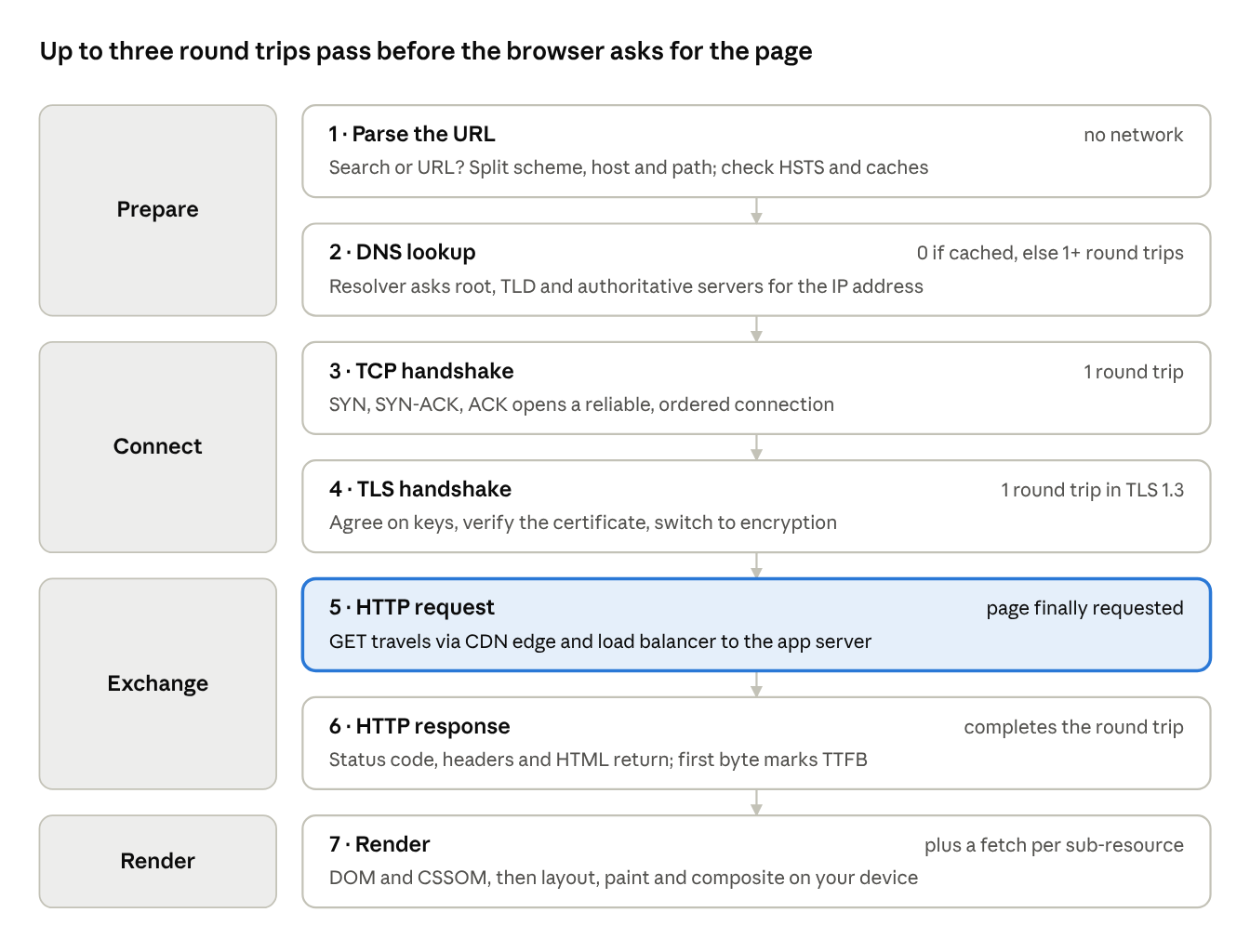
DNS, TCP and TLS all finish before the browser sends its first request, which is why so much web performance work targets those round trips.
Frequently asked questions
How long does all of this take?
Usually well under a second on a fast connection. The biggest factor is distance: each round trip (DNS, TCP, TLS) costs roughly the time for a signal to reach the server and back. That's why CDNs, DNS caching, TLS 1.3 and HTTP/3 all focus on cutting round trips.
Why does a site load faster the second time?
Almost every step has a cache. The DNS answer is cached, the browser may reuse an open connection, TLS can resume a previous session, and images, CSS and scripts may come straight from the HTTP cache without touching the network.
What happens if I type http:// instead of https://?
If the site is on the browser's HSTS list, the browser silently upgrades to HTTPS before sending anything. Otherwise, it makes an insecure request and the server typically answers with a 301 redirect to the HTTPS version.
What's the difference between a URL and a domain name?
The domain (www.example.com) identifies a server. The URL (https://www.example.com/blog/post?id=42) identifies one specific resource on it, including the protocol, path and parameters.
How should I answer this in a job interview?
Start with the seven-step overview, then go deep on whichever layer the interviewer cares about. For backend roles, expand on DNS, load balancing and caching. For frontend roles, expand on the critical rendering path. Mentioning HSTS, TLS 1.3 and HTTP/3 shows current knowledge.
Does email work the same way?
No. Email uses its own protocols (SMTP to send, IMAP or POP3 to read) and relies on DNS MX records rather than A records. See how email travels from your outbox to someone's inbox.
Conclusion
Pressing Enter kicks off a chain of protocols that took decades to build: DNS finds the server, TCP (or QUIC) connects to it, TLS secures the line, HTTP carries the request, CDNs and load balancers route it, and the browser turns the response into pixels. Each layer solves one problem and hands off to the next.
Once you see the whole chain, a lot of web performance advice makes sense. Almost every trick either cuts a round trip, caches an answer, or gets the first pixels painted sooner.
Related articles
- How DNS turns "google.com" into an IP address
- TCP vs UDP: why the internet needs both
- How HTTPS keeps your data safe (TLS handshake explained)
- Why HTTP/2 and HTTP/3 exist
- How CDNs make websites load faster worldwide
- What is a load balancer?
- How WebSockets enable real-time apps
- Why IPv4 ran out and how NAT kept the internet alive
- How email travels from your outbox to someone's inbox
Sources and further reading
- Populating the page: how browsers work (MDN)
- What is a URL? (MDN)
- Strict-Transport-Security header (MDN)
- HSTS preload list
- What is DNS? (Cloudflare Learning Center)
- What happens in a TLS handshake? (Cloudflare Learning Center)
- RFC 9293: Transmission Control Protocol
- RFC 8446: TLS 1.3
- RFC 9110: HTTP Semantics
- Critical Rendering Path (web.dev)
- Inside look at modern web browser (Chrome for Developers)
- what-happens-when (community deep dive on GitHub)
